
How to cancel, downgrade or pause your Artivive subscription, step by step.
* All our subscriptions automatically renew depending on your subscription of choice
(monthly or yearly)
How to cancel subscription
You can cancel or downgrade your subscription at any time by visiting your Bridge profile dashboard and clicking on “manage subscription”. The change will occur in the next billing period.
Step 1: Go to your Bridge profile dashboard

Step 2: Click on “Manage subscription”
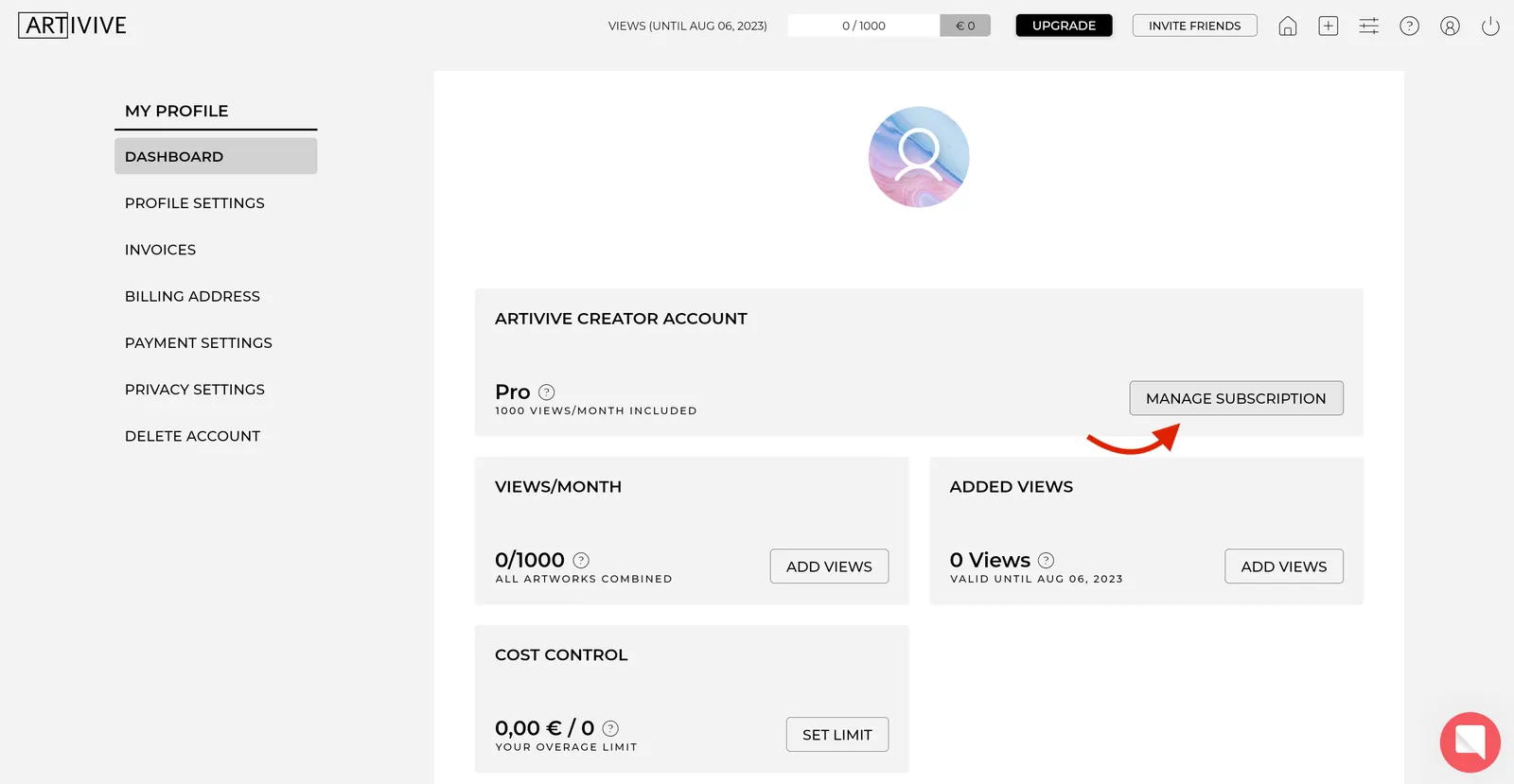
Step 3: Select “Unsubscribe” under your current plan - the changes will occur during your next billing cycle.
On mobile? Go to your profile and tap the "Upgrade" button under your current subscription to manage or cancel it.
Pause subscription
If you would only like to deactivate your subscription for a short period, we offer you an option to pause your subscription.
You are able to pause your subscription for up to 3 months. You can do so by proceeding to unsubscribe and selecting the pause subscription option when offered. The subscription will automatically continue after the time period you paused it for ends.
Step 1: Same process as going to cancel subscription
Step 2: You will be asked if you would like to cancel or take a temporary break, see below:
Ready to try it? Open the editor in Bridge or create a free account.